Live Display. Your whole Mac, on the couch.
See the screen as it happens and control it with a tap. Any display, any window.
PalmDesk for iPhone and iPad
The app that puts your Mac’s screen on your iPhone or iPad, and turns it into a trackpad, a media remote and a presentation clicker.
Free on your Wi‑Fi. Pro from $2.99/mo.1
Works with the free PalmDesk for Mac.2 No account needed.
See the screen as it happens and control it with a tap. Any display, any window.
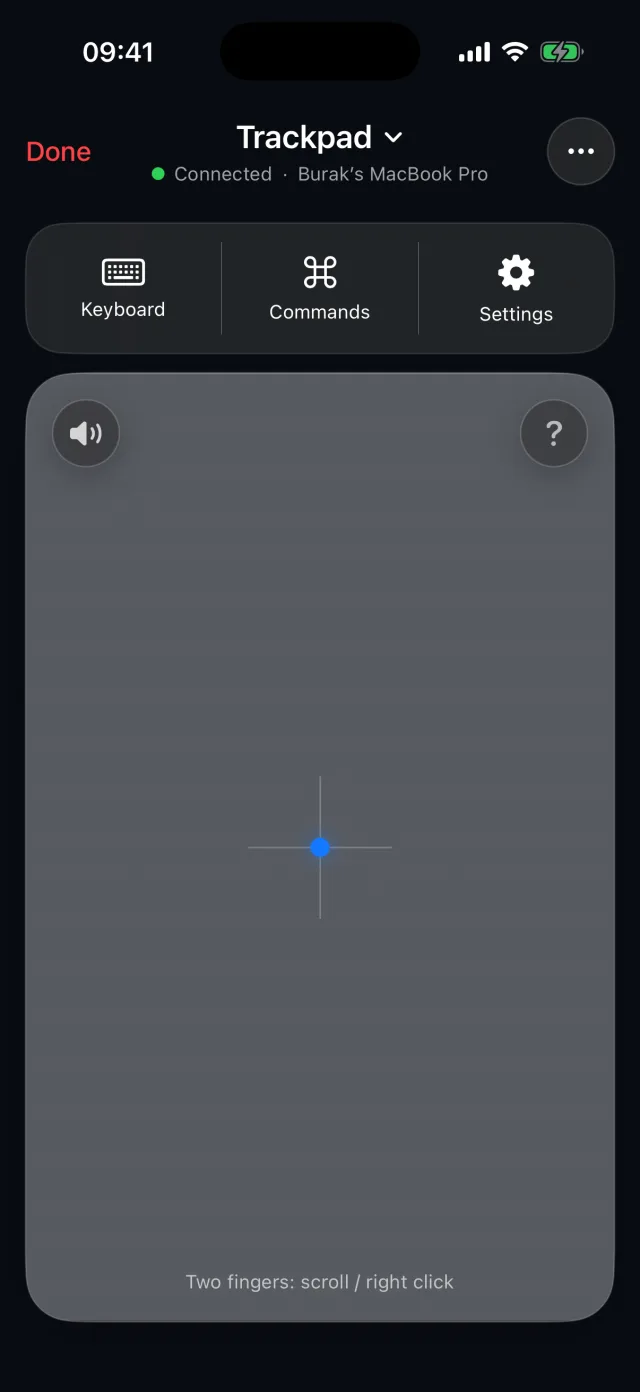
The gestures you already know, a keyboard, and one-tap shortcuts to Mission Control and Spotlight.
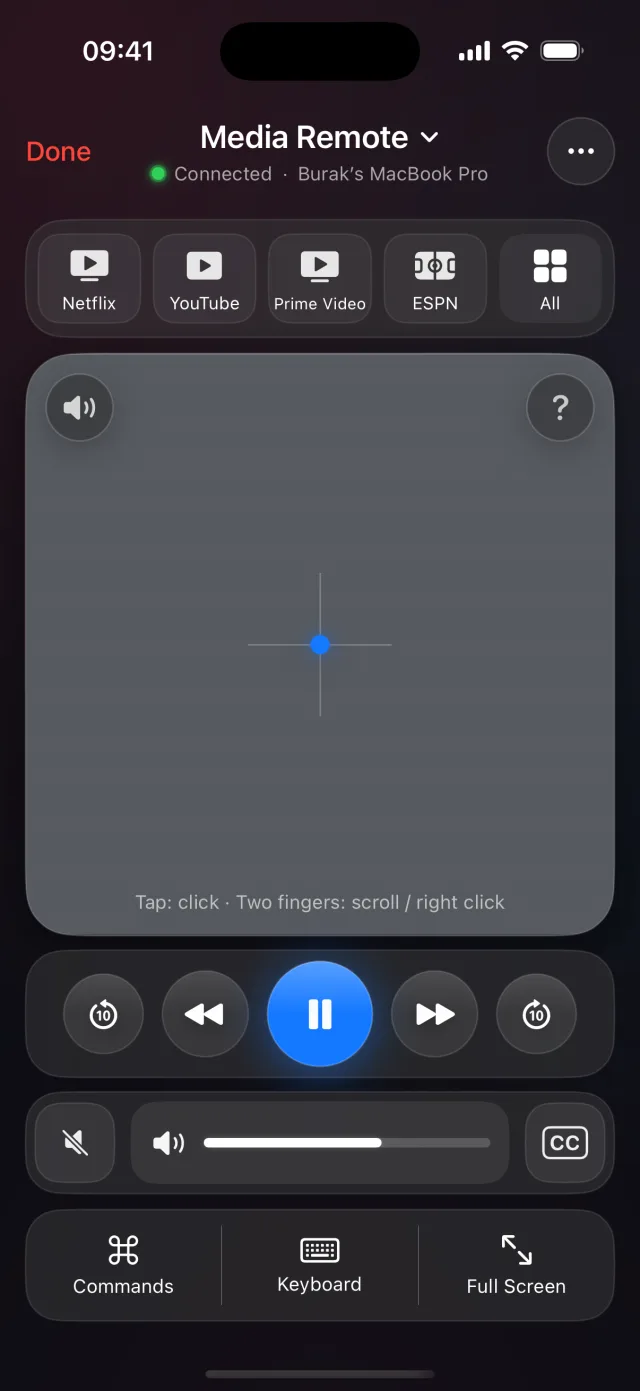
Run Netflix, YouTube or Spotify on your Mac without getting up.
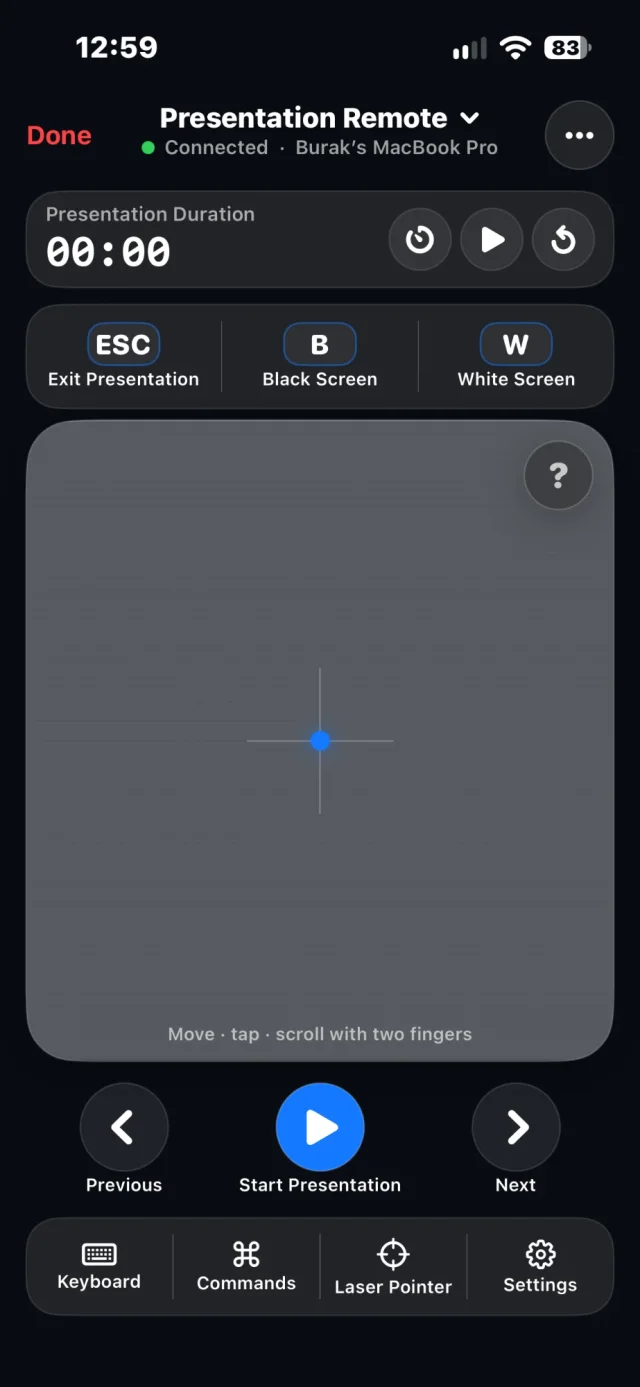
Your notes, a timer and a laser pointer for Keynote and PowerPoint.
A bigger trackpad and a bigger Mac, in every orientation.
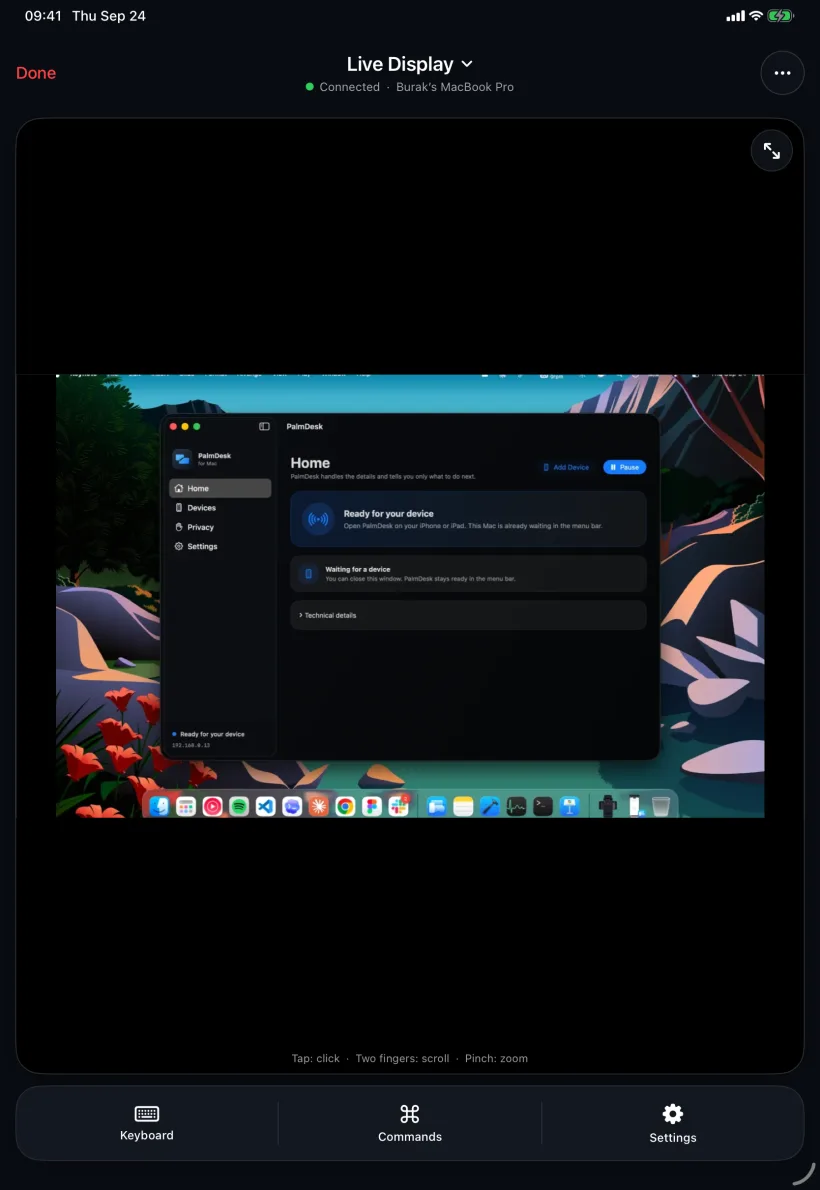
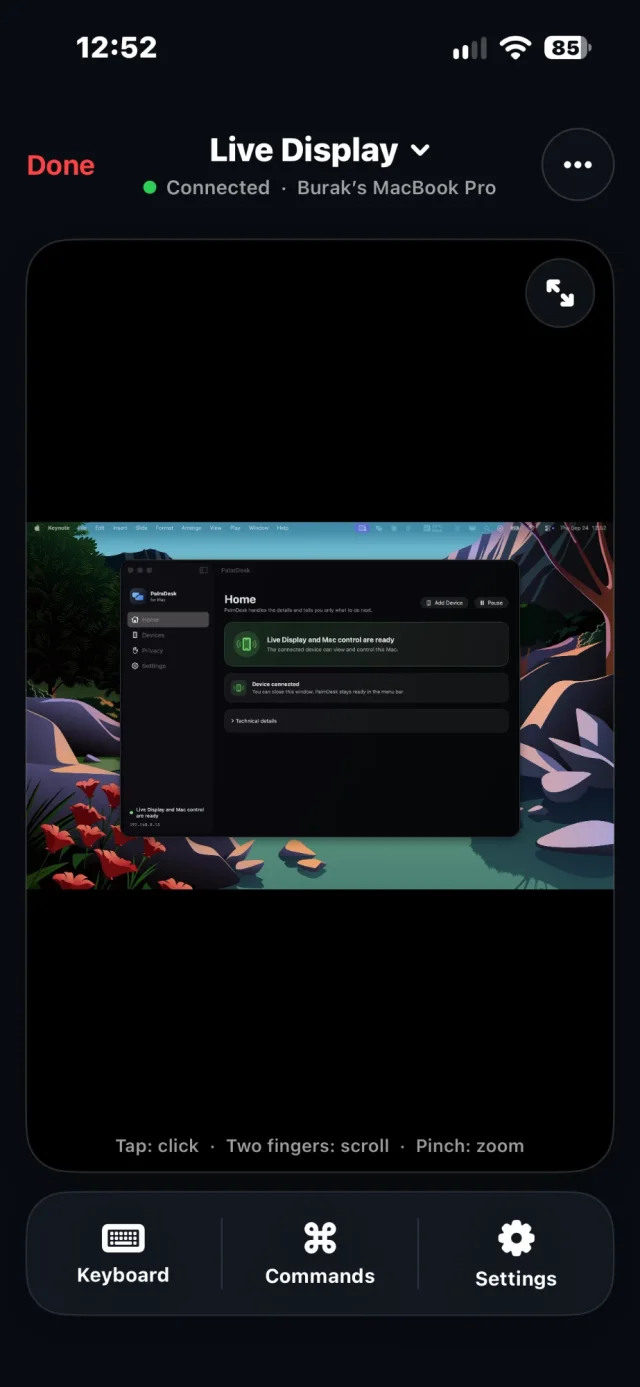
Open Live Display and your Mac’s screen is right there, sharp enough for small print, with touch in place of a mouse. Tap to click, two fingers to scroll, pinch to zoom. Turn your iPhone sideways and the Mac fills the screen.
More about Live Display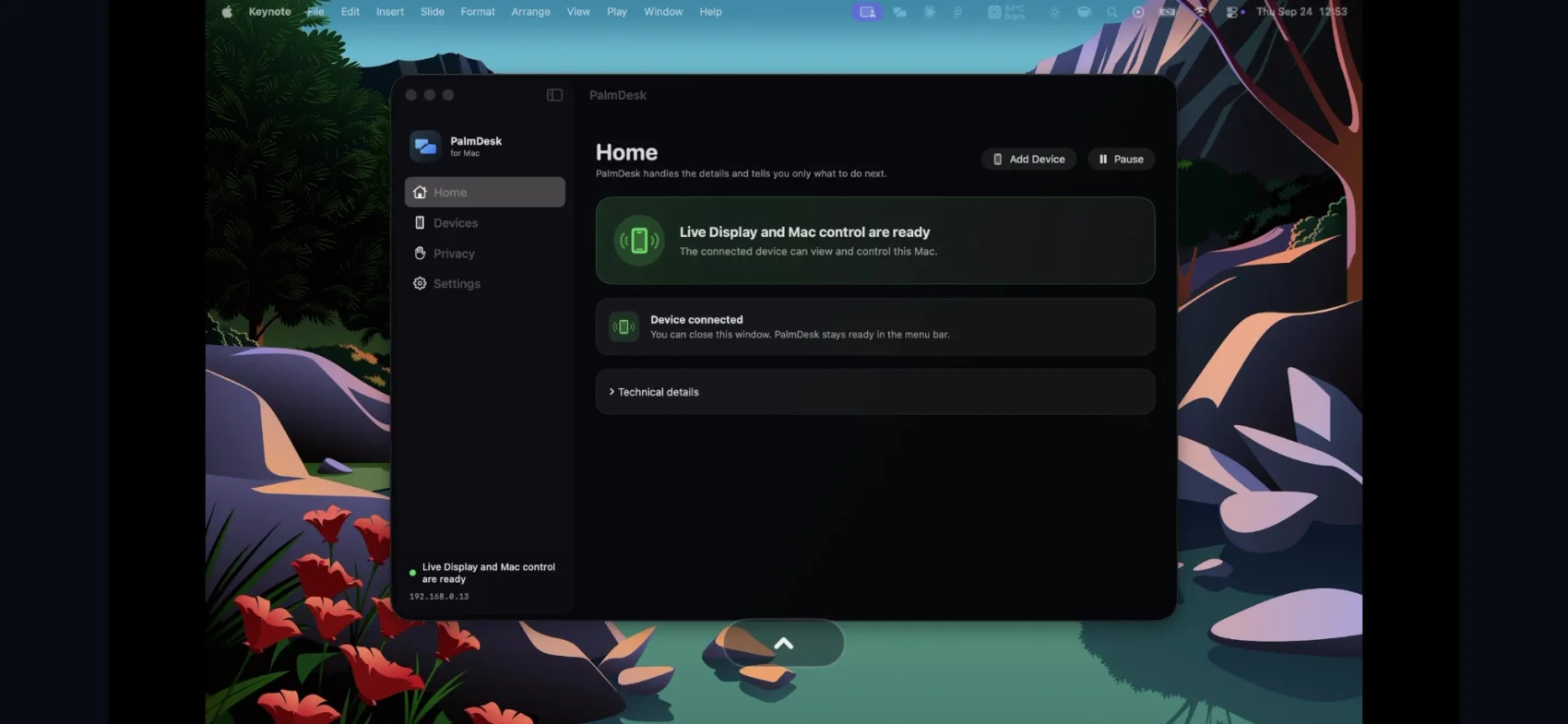
A full-size trackpad with the gestures your fingers already know: click, right-click, scroll, drag, Mission Control and Spaces. Type straight into the Mac with your iPhone’s keyboard.
More about Trackpad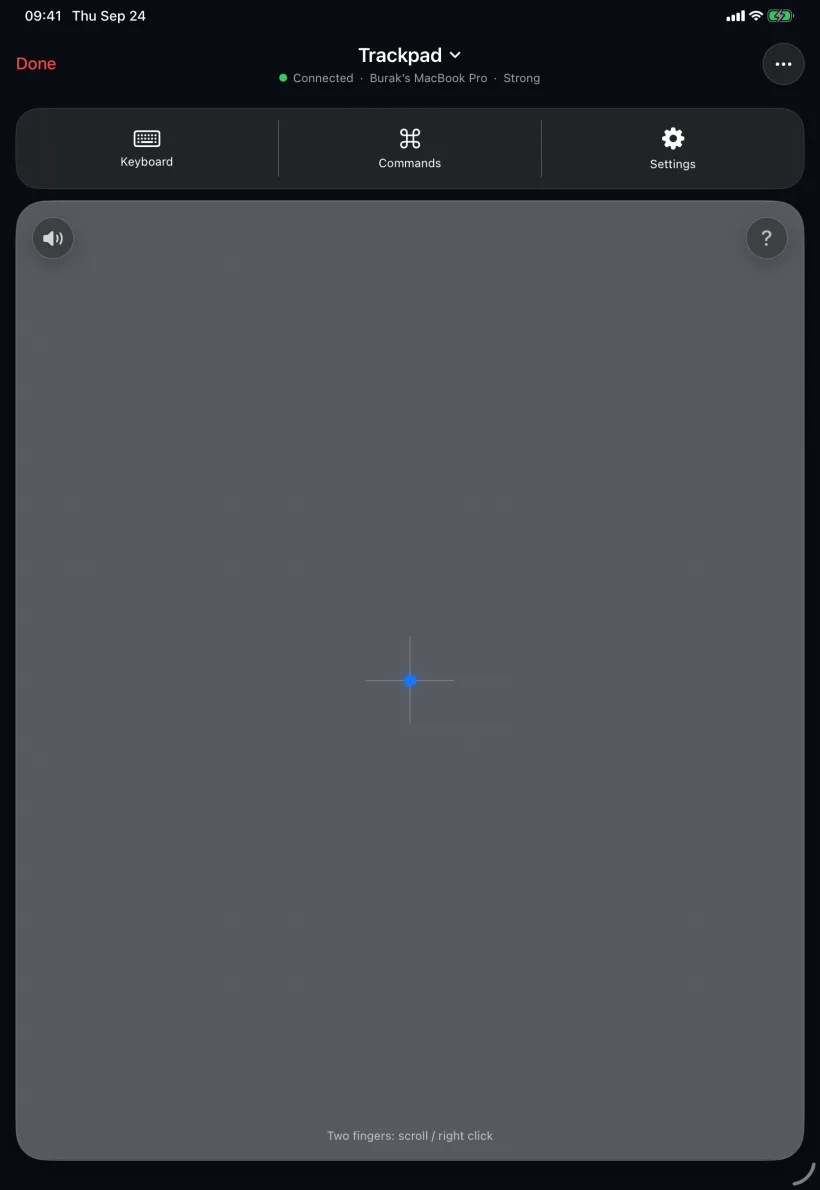
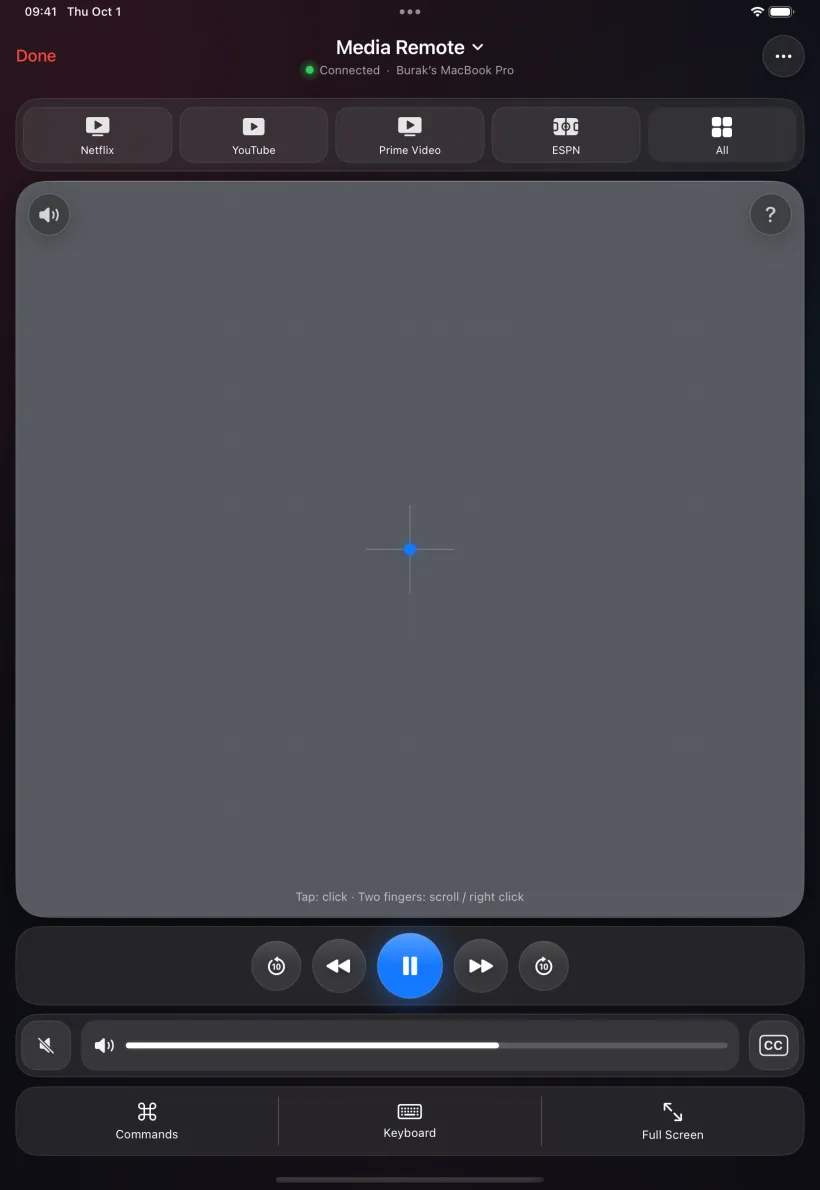
Mac on the TV? Play and pause, jump back 10 seconds, turn up the volume and switch on subtitles from wherever you’re sitting. Shortcuts open your streaming apps in one tap.
More about Media RemoteWalk the stage with your iPhone or iPad. Advance slides, black out the screen, point with a laser, and keep an eye on the clock and your notes.
More about Presentation Remote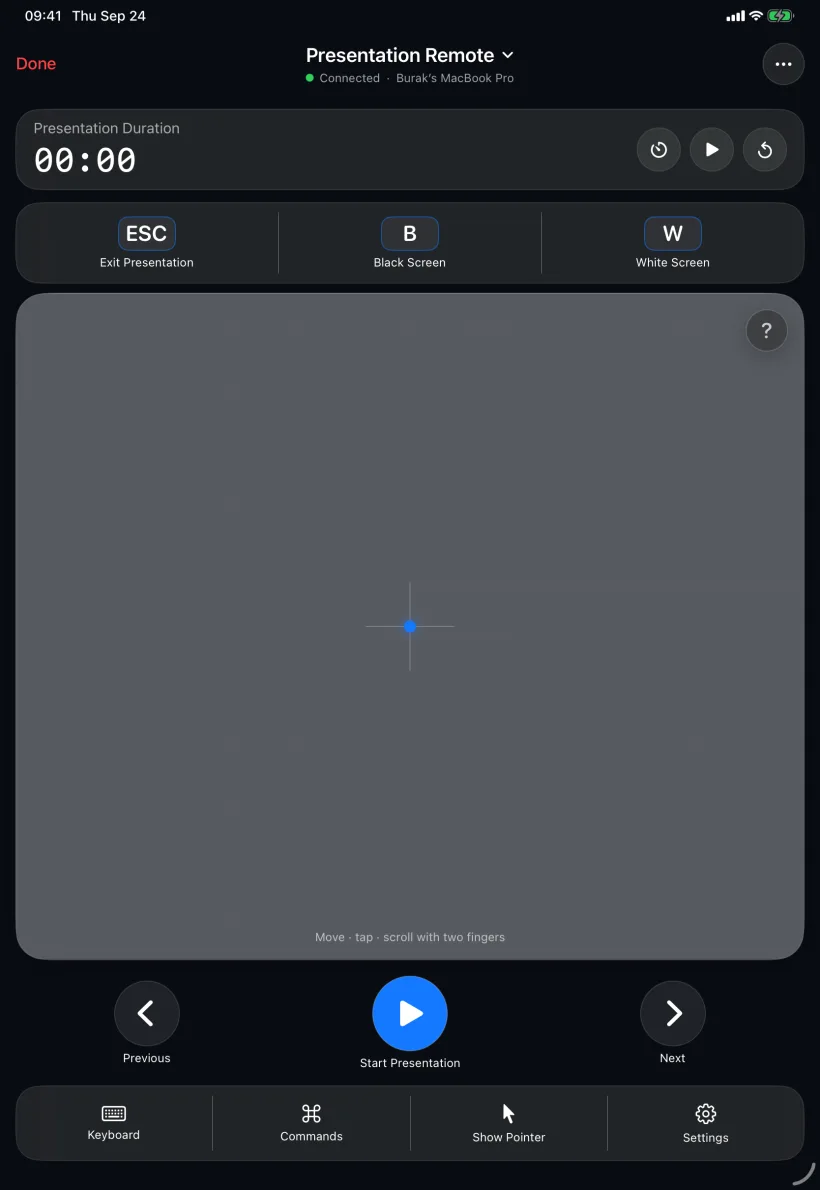
On the same Wi‑Fi, PalmDesk connects straight to your Mac, free and with no time limit. With Pro, reach it from the office, a hotel or mobile data, over an encrypted connection that finds its own way through.
Same Wi‑Fi, the fastest path. Always free.
Any network, any distance, with PalmDesk Pro.
A nearby Mac can be kept ready, so it connects the moment you tap.
Every session is end-to-end encrypted between your iPhone or iPad and your Mac. There’s no account to create and nothing to track.
How PalmDesk protects youNo support codes to hand out. A Mac accepts only iPhones and iPads you approved on it and confirmed on both screens.
Pairing keys live in the Keychain and never leave the device they were made on.
Choose apps that never appear in the stream, no matter what’s on screen.
PalmDesk doesn’t know who you are, and doesn’t need to.
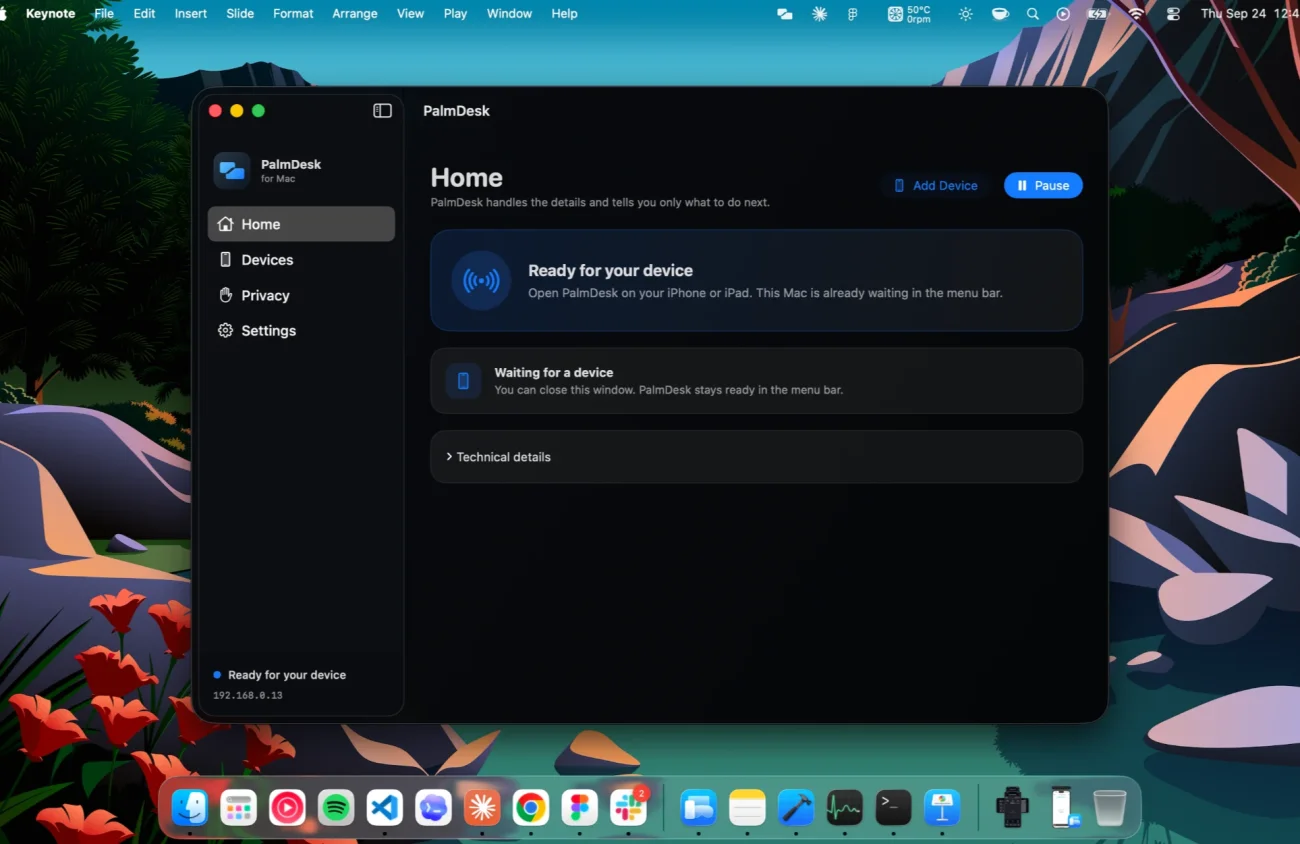
Open the free Mac app and allow screen sharing and control once. It waits in the menu bar.
Tap Add Mac on your iPhone or iPad, scan the code on the Mac, and confirm it on both screens.
From then on, open PalmDesk and tap. That’s it.
Free
When your devices share a Wi‑Fi network
$2.99/mo.
or $19.99/yr., both with a 7-day free trial1
Install the free PalmDesk app on your Mac and PalmDesk on your iPhone, pair them once with the code, then tap your Mac. You get the live screen, a trackpad and keyboard, a media remote and a presentation remote.
Yes. It’s one app for iPhone and iPad (iPadOS 17 or later), and on iPad it uses the larger screen for a wider trackpad and a bigger view of the Mac. In version 1.0 a Mac pairs with one iPhone or iPad at a time.
Yes, whenever your iPhone or iPad and your Mac are on the same Wi‑Fi: every mode, no time limit, one Mac. PalmDesk Pro adds access from any network and more Macs for $2.99 a month or $19.99 a year, with a 7-day free trial. The Mac app is always free.
Every session is end-to-end encrypted between your devices, and only devices you paired on your Mac can connect. Our servers only pass along sealed connection details they can’t read.
Not in version 1.0. Sound keeps playing on the Mac, and the Media Remote controls its volume.
No. The Mac needs to be on and awake, with PalmDesk running in the menu bar.
Sidecar makes an iPad a second Mac display, and Universal Control shares your Mac’s keyboard and mouse with a nearby iPad. Neither lets an iPhone control a Mac, and neither works over the internet. See the comparison.
PalmDesk 1.0 is in final preparation for the App Store. This page will link to it the day it goes live.