Use your iPhone as a trackpad for your Mac
PalmDesk’s Trackpad mode turns your iPhone or iPad into a full-size trackpad and keyboard for your Mac, with the gestures you already use on a MacBook.
Updated September 24, 2026 · PalmDesk 1.0
Quick answer
Install PalmDesk on your iPhone and the free PalmDesk app on your Mac, pair them once, then open Trackpad mode. One finger moves the pointer, a tap clicks, two fingers scroll and right-click, and the keyboard types straight into the Mac. It’s free on the same Wi‑Fi.
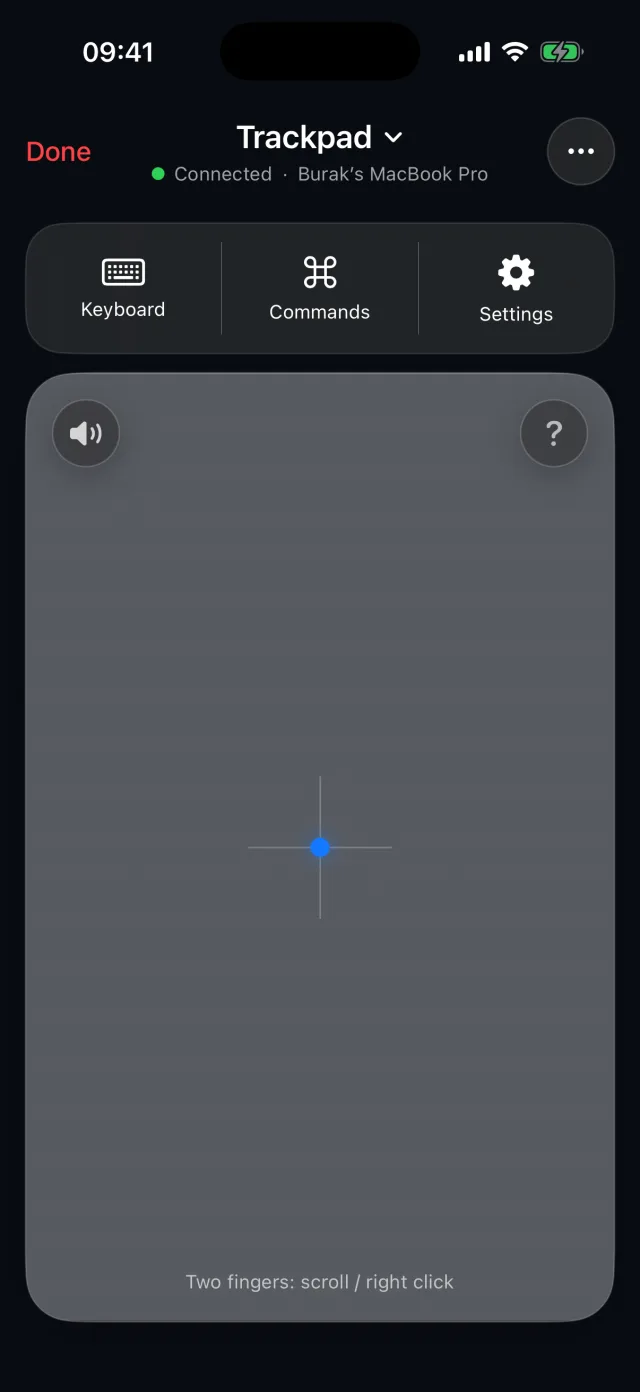
Gestures that work like a Mac trackpad
| Move the pointer | One finger |
|---|---|
| Click | Tap |
| Right-click | Two-finger tap |
| Scroll | Two fingers, with momentum |
| Drag | Press and hold, then move (or turn on Drag Lock) |
| Mission Control, App Exposé | Three-finger swipe up or down |
| Switch Spaces | Four-finger swipe left or right |
Adjust Pointer Speed, Natural Scrolling, Haptic Feedback and Drag Lock in Settings.
More than a mouse
Remote keyboard
Type with your iPhone’s keyboard; it can open by itself when a text field is focused on the Mac. Esc, Tab and Return are one tap away.
Quick Commands
Mission Control, App Exposé, Show Desktop, Spotlight and the previous or next Space, without leaving the trackpad.
No video, lowest latency
Trackpad mode doesn’t stream the screen. The Mac stops capturing entirely, so only small, encrypted input messages travel.
How to set it up
Install both apps
PalmDesk on your iPhone or iPad, and the free PalmDesk for Mac with Accessibility permission.
Pair once
Tap Add Mac on the iPhone and scan the QR code shown on the Mac, then confirm the fingerprint.
Choose Trackpad
Tap your Mac, pick Trackpad as the mode, and start moving. You can switch to another mode at any time without reconnecting.
Good to know
- The Mac must be awake with PalmDesk running; the login screen can’t be controlled.
- Away from your Wi‑Fi, the trackpad works over the internet with PalmDesk Pro.
Questions
Can I use my iPhone as a mouse for my Mac without extra hardware?
Yes. PalmDesk uses your existing Wi‑Fi; no dongle, cable or Bluetooth pairing is needed.
Do keyboard shortcuts work?
Yes. Keys and shortcuts are passed straight through to the Mac, and Quick Commands cover the common system gestures in one tap.
Is the iPhone trackpad free?
Yes, on the same Wi‑Fi, with no time limit. Using it from another network needs PalmDesk Pro.
Does it work on iPad too?
Yes, and the larger screen gives you a bigger trackpad. See PalmDesk for iPad.
Your Mac’s trackpad, in your hand.
PalmDesk 1.0 is in final preparation for the App Store. This page will link to it the day it goes live.