
PalmDesk for Mac
The free companion app that lets your iPhone or iPad see and control your Mac. It lives in the menu bar, asks for its permissions once, and stays out of the way until a device connects.
Version 1.0 · macOS 14 Sonoma or later · Free
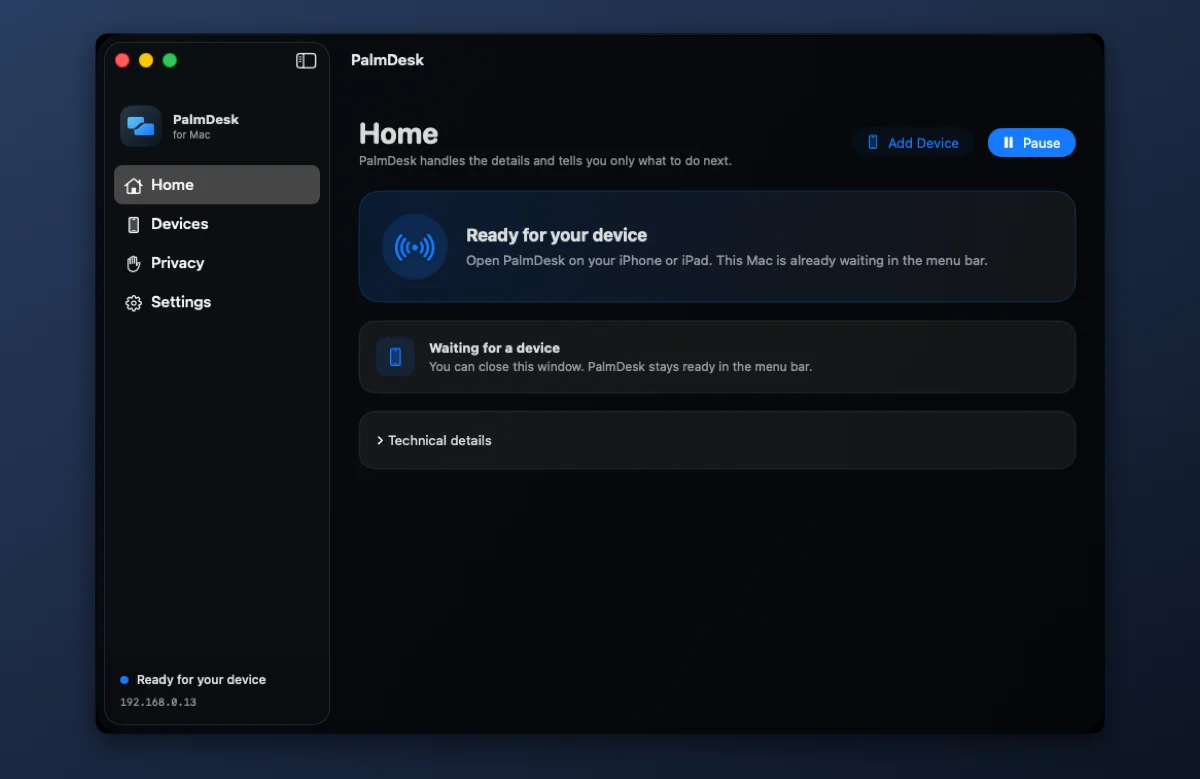
In short
PalmDesk for Mac captures the screen with ScreenCaptureKit, encodes it with the Mac’s hardware H.264 encoder and applies the pointer and keyboard input it receives from PalmDesk on your iPhone or iPad. It never needs a purchase; Pro is bought in the iPhone or iPad app.
Requirements
| macOS | macOS 14 Sonoma or later |
|---|---|
| Mac | Apple silicon or Intel |
| Controller | PalmDesk on an iPhone or iPad with iOS/iPadOS 17 or later |
| Network | Same Wi‑Fi for a direct connection; any internet connection with PalmDesk Pro |
| Price | Free |
Set it up
Download and open PalmDesk
Move PalmDesk to the Applications folder and open it. A setup assistant walks you through the permissions in the right order.
Grant the permissions, then restart PalmDesk
Allow Screen Recording and Accessibility in System Settings. macOS applies them only after the app restarts; PalmDesk shows a Restart button when that’s needed.
Add your iPhone or iPad
Choose Add Device. A one-time QR code and 9-digit code appear for two minutes; scan or type it on your device and confirm the fingerprint on both screens.
Why it asks for each permission
| Permission | What it’s used for |
|---|---|
| Screen Recording | Sending the screen to Live Display. Without it, the other modes still work. |
| Accessibility | Moving the pointer, clicking, typing, media keys and slide controls. |
| Automation | Reading the slide number and presenter notes from Keynote or PowerPoint. Only asked for when you present. |
| Local Network | Finding your iPhone or iPad on the same Wi‑Fi and connecting to it directly. |
What you control on the Mac
Menu bar
See whether PalmDesk is ready or a device is connected, add a device, pause PalmDesk, and turn on Launch at Login. Closing the window keeps it running.
Connections
Nearby Connections (same Wi‑Fi) and Internet Connections (another network) can each be switched off; at least one stays on.
Privacy Zones
Pick apps that never appear in the stream. They’re left out of screen capture and the window list.
Hide sensitive screens
Pauses Live Display while a password field or a macOS authorization dialog is visible. On by default; you can turn it off in Settings.
Questions
Is PalmDesk for Mac free?
Yes, always. Remote access and extra Macs are part of PalmDesk Pro, which you buy in the iPhone or iPad app.
Does the Mac app need to stay open?
It needs to be running, but not its window. Close the window and PalmDesk waits in the menu bar; Launch at Login is on from the start, so it is ready after every restart.
Will it work when my Mac is asleep or locked at the login screen?
No. The Mac must be on and awake with a user logged in and PalmDesk running.
Does it capture audio or my camera?
No. PalmDesk for Mac doesn’t capture system audio, the microphone or the camera. It only shares the screen while Live Display is open.
How is the download distributed?
From this page, signed with a Developer ID and notarized by Apple, so macOS verifies it before it opens.