See and control your Mac screen from your iPhone
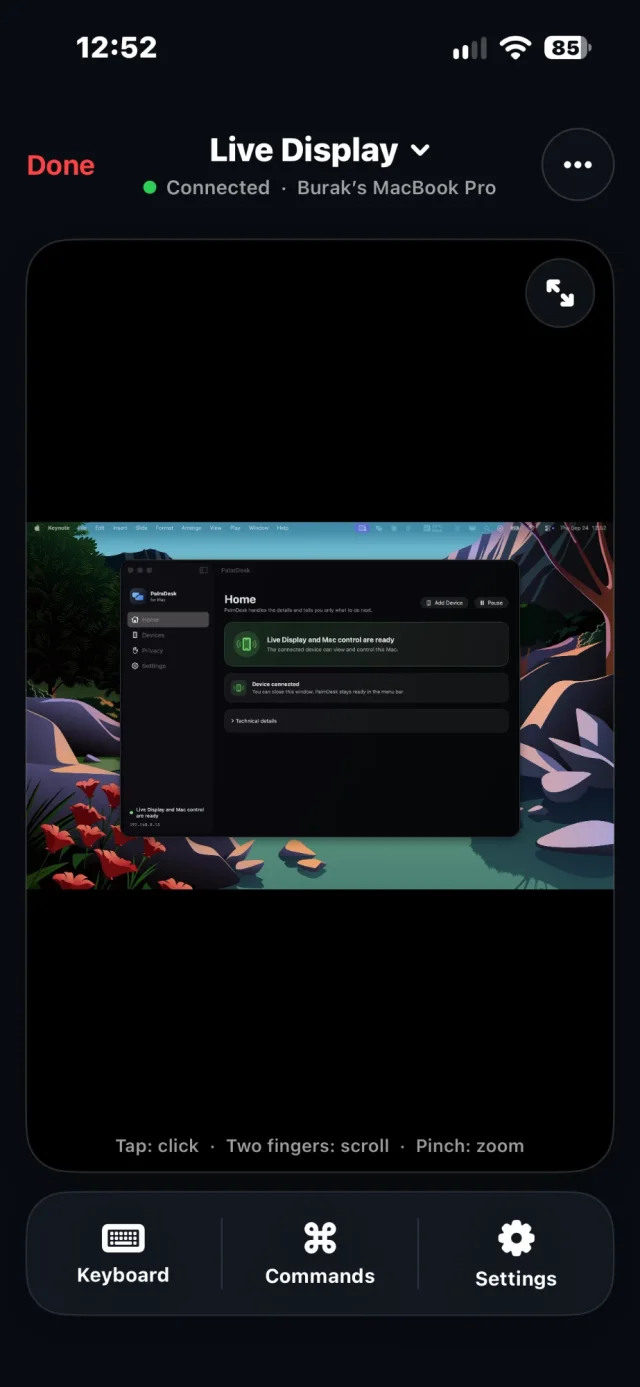
Live Display streams your Mac’s screen to your iPhone or iPad and lets you work on it with touch: click, scroll, type and zoom, at home or, with Pro, from anywhere.
Updated September 24, 2026 · PalmDesk 1.0
Quick answer
With PalmDesk on your iPhone or iPad and the free PalmDesk app on your Mac, open Live Display to see the Mac screen in real time. Tap to click, drag two fingers to scroll and pinch to zoom. The picture arrives at your Mac’s own resolution, at up to 30 frames per second, end-to-end encrypted.
Show exactly what you need
- Any display. Each connected monitor is listed on its own, so a multi-monitor Mac works too.
- The active window, following whatever is in front.
- One specific window, picked from a list of what’s open.
- The centre region of the screen, for a closer view on a small phone.
Change the target from the iPhone during the session; the connection stays up.
Built for a touch screen
Touch control
Tap to click, two fingers to scroll, pinch to zoom and Reset Zoom to go back. The keyboard and Quick Commands sit in the toolbar.
Full screen in landscape
Turn the phone sideways and the Mac fills the display; hide the controls entirely when you want every pixel.
Sharp text
When the network weakens, PalmDesk lowers the frame rate and bitrate before resolution, so small text stays readable when you zoom.
Smooth on fast Wi‑Fi. Steady on slow.
Live Display runs at up to 30 frames per second and adjusts on its own when the network gets busy. It lowers smoothness before sharpness, so text stays readable, and climbs back as soon as the connection recovers. Tech specs
How to see your Mac screen on iPhone
Install PalmDesk on both devices
Grant Screen Recording and Accessibility in PalmDesk for Mac; macOS applies them after a restart of the app.
Pair with the QR code
Tap Add Mac on your iPhone or iPad, scan the one-time code and confirm the fingerprint.
Open Live Display
Tap your Mac with Live Display selected. Pick a display or window from the toolbar whenever you like.
Good to know
- Audio isn’t streamed; sound keeps playing on the Mac.
- Apps you add to Privacy Zones on the Mac never appear in the stream.
- Viewing from another network needs PalmDesk Pro.
Questions
Can I mirror my Mac screen to my iPhone?
Yes. Live Display shows the Mac screen on the iPhone in real time and lets you control it with touch, not only watch it.
Does it work with more than one monitor?
Yes. Each connected display appears as its own capture target, and you can switch between them during the session.
Can I access my Mac screen when I’m away from home?
Yes, with PalmDesk Pro and Internet Connections turned on in the Mac app. PalmDesk connects directly when it can and through an encrypted relay when it can’t.
Is it the same as macOS Screen Sharing?
No. PalmDesk doesn’t use VNC or Screen Sharing; it has its own Mac app and an end-to-end encrypted WebRTC session. See the comparison.
Your Mac’s screen, wherever you are.
PalmDesk 1.0 is in final preparation for the App Store. This page will link to it the day it goes live.